
2.7 Baldur's Gate & Icewind Dale EEs Update: New Languages, Improved Cloud Support, Mobile Modding
 JuliusBorisov
Member, Administrator, Moderator, Developer Posts: 23,004
JuliusBorisov
Member, Administrator, Moderator, Developer Posts: 23,004
in News
Greetings once again to all Baldur’s Gate and Infinity Engine fans across the globe!
The 2.7 Update for BG I & II and Icewind Dale: Enhanced Editions is releasing today on PC and mobile.
This patch improves the overall quality-of-life experience, bringing new languages, improved Steam & GOG cloud support, full mobile modding, native Apple Silicon support, and more.
You’ll find the update (once it populates) on Steam, GOG, Epic Games Store, Microsoft Store, App Store, Mac App Store, and Google Play.
Wait, there is more: save up to 65%💰 on the App Store and Google Play, and celebrate the patch release with us! It's our first mobile sale since 2022, so don't miss your chance to get Baldur's Gate for your mobile for under $4 USD.
Patch Highlights
Technical info on mobile modding for iOS:
Technical info on mobile modding for Android:
How to recover your game if you import mods that cause the game to crash on boot?
The 2.7 Update for BG I & II and Icewind Dale: Enhanced Editions is releasing today on PC and mobile.
This patch improves the overall quality-of-life experience, bringing new languages, improved Steam & GOG cloud support, full mobile modding, native Apple Silicon support, and more.
You’ll find the update (once it populates) on Steam, GOG, Epic Games Store, Microsoft Store, App Store, Mac App Store, and Google Play.
Wait, there is more: save up to 65%💰 on the App Store and Google Play, and celebrate the patch release with us! It's our first mobile sale since 2022, so don't miss your chance to get Baldur's Gate for your mobile for under $4 USD.
Patch Highlights
- Steam Cloud saves can now be controlled via the Steam client — Previously, the only way to enable or disable Steam Cloud Saves for BG1:EE, BG2:EE, and IWD:EE was within the Gameplay Options of the games. Now, Steam Cloud Saves are controlled by the Steam client and the individual game properties settings
- GOG Galaxy Cloud saves — now functioning properly
- Added Apple Silicon support — With native support for Apple Silicon, on Mac devices you can expect faster app launch times, overall improved performance, and faster rendering. In addition, laptops will benefit from lower power consumption while playing, leading to longer battery life
- New localizations — We added the following community-translated languages: BG:SoD - Chinese (Simplified), Korean, Russian; BGII - Brazilian Portuguese, Czech, Ukrainian; IWD - Hungarian, Japanese
- SoD language switch — Switching to the SoD campaign will now only display languages where SOD was translated. Previously, the game always displayed the full list of languages that BG1’s base game supported. If you are playing BG1 or The Black Pits in a language that SoD doesn’t support when you switch to the SoD campaign, the game will change the language to English automatically
- Dynamic language support — We made changes to allow easier language updates and additions in the future
- Chinese font change — At the request of the Chinese localization volunteers, we have changed the font for Chinese
- Font Size saved per font language — The Font Size zoom setting is now saved per font language
- Indexing Fix — Resolved an off‑by‑one error in rebuilt BIF files that affected some community tools
- iOS Restore Purchases — The “Restore Purchases” button has returned, allowing the game to sync with Apple’s purchase history
- Mobile Keyboard Improvements — The UI now shifts so the text cursor remains visible above the virtual keyboard, preventing cursor loss and mis‑registered taps on iOS & Android
- Android Foldable Support — Fixed UI scaling and touch‑input issues on foldable and tall‑aspect devices. The game now properly resizes when the device’s screen configuration changes
- Android Character Export — Exporting a character now also places the file into the user‑accessible directory
- iOS Modding now supported — The game now stores and reads data from a location visible to standard file browsers. You can manage saves and other files directly on your device or by connecting it to a computer:
On iOS: Open the Files app → navigate to On My device → find the game’s folder;
The home:/ directory is now user-accessible;
You can transfer saves, character portraits, and other files (mods) between different devices.
The home:/ directory is now user-accessible;
You can transfer saves, character portraits, and other files (mods) between different devices.
- Android Override Folder Optimization — Fixed long boot delays caused by large /override/ folders. Importing is manual via an in‑game UI
- Android DLC Display Fix — The Fists of the Fallen DLC for BG2 now correctly shows as installed
- Android Modding now supported — This update resolves a bug that caused incorrect permissions, preventing access via PC or file browsers. Existing installations with incorrect permissions cannot be repaired. You must uninstall and reinstall the game. Because uninstalling removes saves, export them first and copy anything important to a PC:
Saving: New saves are exported to \<root\>/Documents/\<game\>/save/\<save_name\> These saves can be freely copied between Android and PC;
Deleting: Removing a save in game also deletes it from the Documents directory (if present);
Adding files manually: Placing files in \<root\>/Documents/\<game\>/ triggers a folder picker on next launch.
Deleting: Removing a save in game also deletes it from the Documents directory (if present);
Adding files manually: Placing files in \<root\>/Documents/\<game\>/ triggers a folder picker on next launch.
Technical info on mobile modding for iOS:
The iOS games will now save games and read files from a location that is visible to file browsers. Users can access these files on the iOS device itself, or on MacOS or Windows by connecting their phone to a computer and using appropriate software to explore the device.
Ensure you have made a new save in the iOS 2.7 version so that the directory is created. If you want to access a particular save you made in a previous version, ensure that you upgrade the app (do not uninstall). Load the save, and then make a new save after loading. All new saves will appear in the user-accessible location.
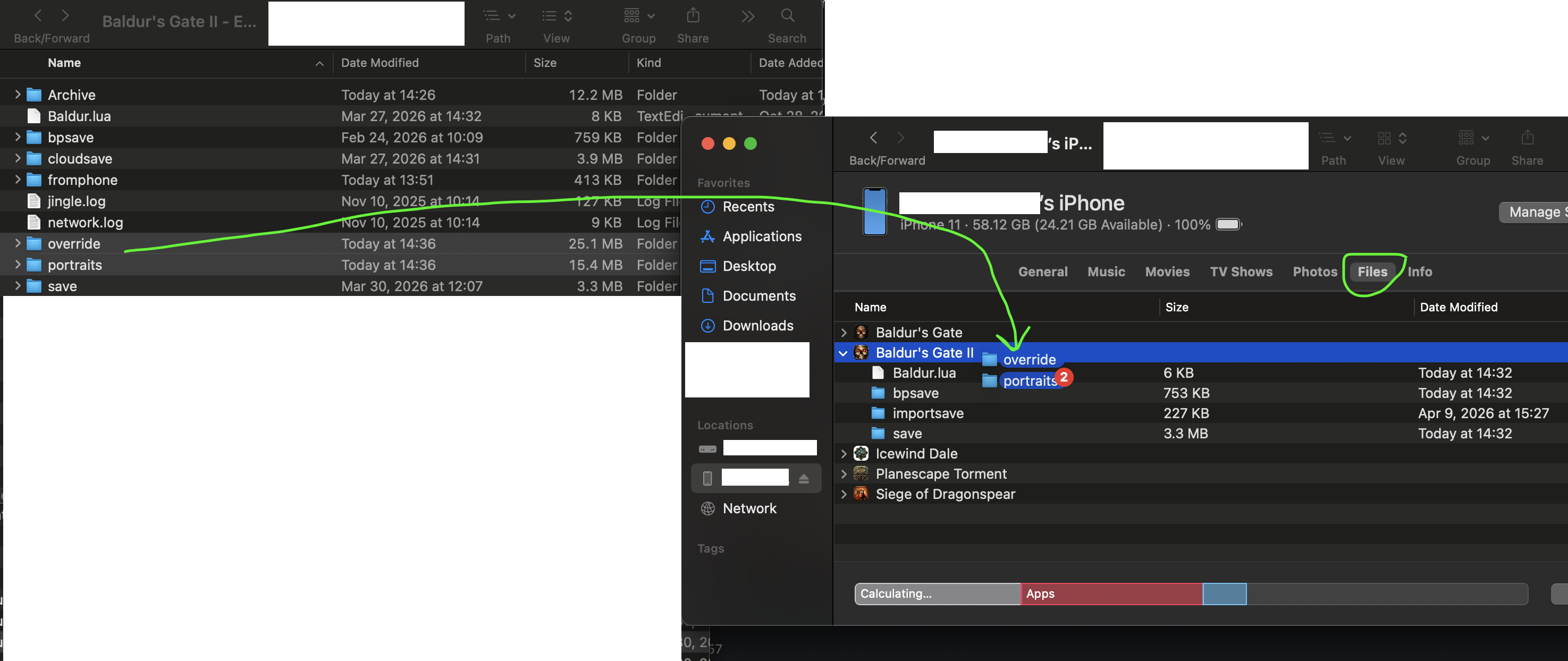
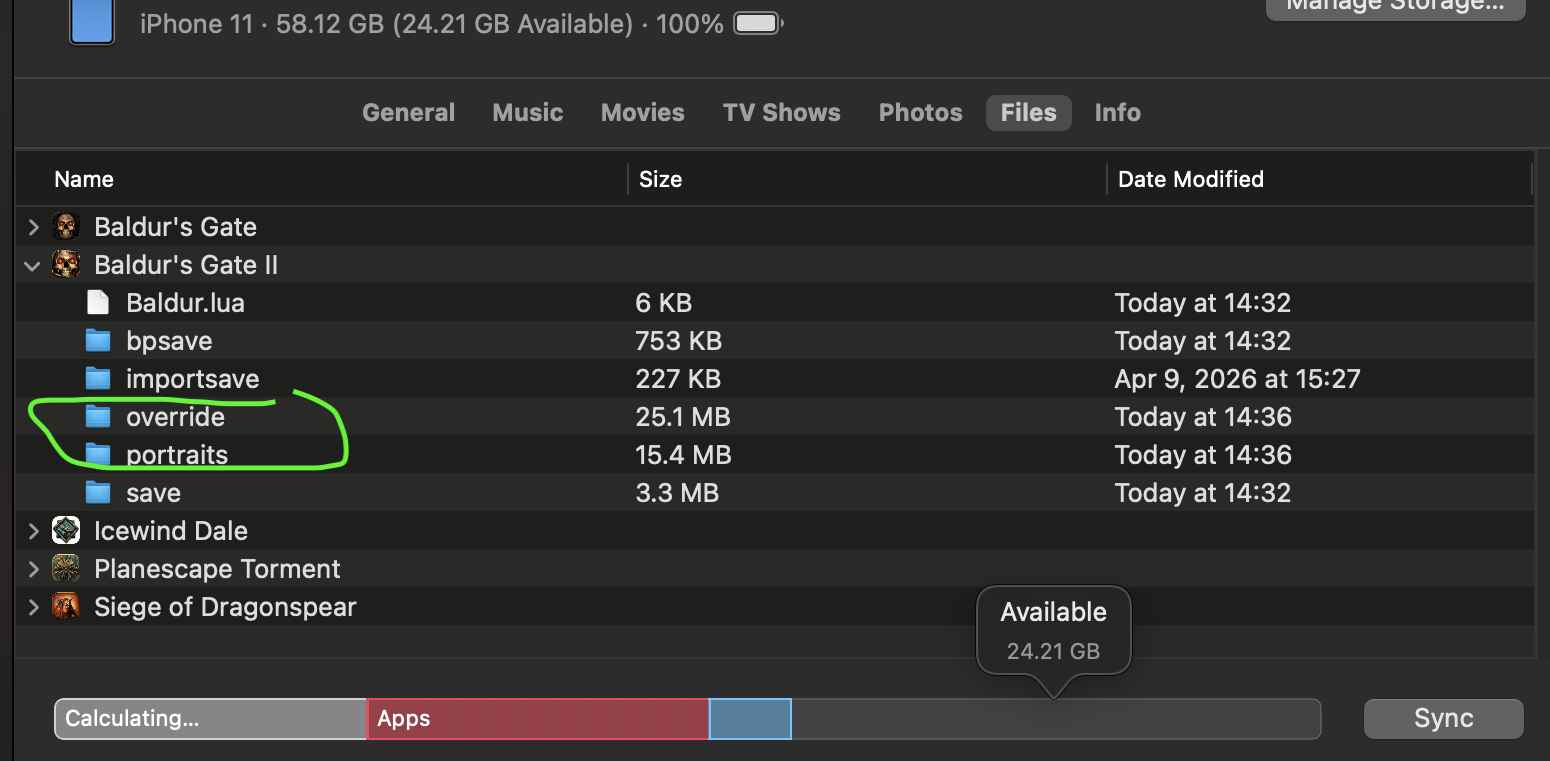
MacOS - use the Finder to open the device and view the Files tab to see any new saves the game has made
Windows - use the Apple Devices software provided by Apple in the Windows Store to explore the device and view the Files tab to see any new saves the game has made
iOS - use the Files app to view the game directories in the “On My <device>” section
Users that wish to add game overrides, portraits, etc. can do so by copying the appropriate folder to the game folder of their choice on the iOS device.
About the folder structure around the /lang/ folders, it is a bit confusing, but the game does treat certain locations as special folders that it will read from on PC only:
install:/lang/en_US/sounds
install:/lang/en_US/movies
But on iOS, there is no way for the user to do anything to the install:/ folder, unlike PC. The game is also looking for files under certain home:/ paths though, which is why you can still override files:
home:/movies
home:/characters
home:/portraits
home:/sounds
home:/scripts
home:/override
What might make things feel simpler is if you do your testing on PC by using the home:/ directory as well, which is your <user_path>/Documents/Baldur's Gate - Enhanced Edition/ folder. That should work the same way on PC/Mac and iOS
home:/override/ does not work for .tlk. The files should go under home:/lang/<lang_code>/dialog.tlk
-- lang/
-- en_US/
-- dialog.tlk
What you can do is copy the whole folder off the device onto your PC, then make edits to the files/subfolders on PC, then copy the whole thing back and overwrite (via iTunes).
The .bgdata file should be unzipped exactly as it is into the home:/ directory. However, prior to 2.7, there was a potential issue with how the game unzipped folders, so subfolders may not work at all. 2.7 should fix that issue.
But even better, 2.7 makes the home:/ directory user-accessible. That's the exact folder that will appear when using the Files app and viewing "On My iPhone" under Baldur's Gate (or from a computer viewing the Files tab). So the much simpler approach now is to simply copy all the folders you want into that base directory, such as /save/, /override/, etc.
ex. <On My iPhone>/Baldur's Gate II/override/<files>
Ensure you have made a new save in the iOS 2.7 version so that the directory is created. If you want to access a particular save you made in a previous version, ensure that you upgrade the app (do not uninstall). Load the save, and then make a new save after loading. All new saves will appear in the user-accessible location.
MacOS - use the Finder to open the device and view the Files tab to see any new saves the game has made
Windows - use the Apple Devices software provided by Apple in the Windows Store to explore the device and view the Files tab to see any new saves the game has made
iOS - use the Files app to view the game directories in the “On My <device>” section
Users that wish to add game overrides, portraits, etc. can do so by copying the appropriate folder to the game folder of their choice on the iOS device.
About the folder structure around the /lang/ folders, it is a bit confusing, but the game does treat certain locations as special folders that it will read from on PC only:
install:/lang/en_US/sounds
install:/lang/en_US/movies
But on iOS, there is no way for the user to do anything to the install:/ folder, unlike PC. The game is also looking for files under certain home:/ paths though, which is why you can still override files:
home:/movies
home:/characters
home:/portraits
home:/sounds
home:/scripts
home:/override
What might make things feel simpler is if you do your testing on PC by using the home:/ directory as well, which is your <user_path>/Documents/Baldur's Gate - Enhanced Edition/ folder. That should work the same way on PC/Mac and iOS
home:/override/ does not work for .tlk. The files should go under home:/lang/<lang_code>/dialog.tlk
-- lang/
-- en_US/
-- dialog.tlk
What you can do is copy the whole folder off the device onto your PC, then make edits to the files/subfolders on PC, then copy the whole thing back and overwrite (via iTunes).
The .bgdata file should be unzipped exactly as it is into the home:/ directory. However, prior to 2.7, there was a potential issue with how the game unzipped folders, so subfolders may not work at all. 2.7 should fix that issue.
But even better, 2.7 makes the home:/ directory user-accessible. That's the exact folder that will appear when using the Files app and viewing "On My iPhone" under Baldur's Gate (or from a computer viewing the Files tab). So the much simpler approach now is to simply copy all the folders you want into that base directory, such as /save/, /override/, etc.
ex. <On My iPhone>/Baldur's Gate II/override/<files>
Technical info on mobile modding for Android:
The Android games will now export/import user files to and from a location that is visible to file browsers and accessible by the user. By default this location is <root>/Documents/<game_name>
For example using BG1: <root>/Documents/BaldursGate1/
Exporting Behaviour: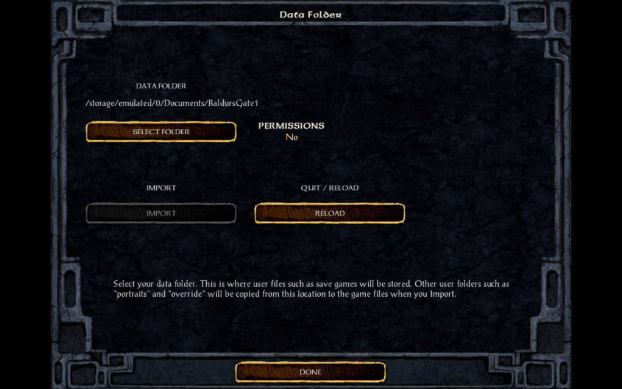
Data Folder: - displays what folder is currently used to export files to, or import files from
Permissions: No - means the folder was not selected by the user, so the game cannot access any user-generated files there (importing is not possible, but the game can still export saves and characters to the default location shown)
Permissions: Yes - means the folder was selected by the user, so importing is possible and the game has full read/write permissions to that folder
Select Folder - press this button to select the folder to use for future exports/imports
It is recommended you choose the <root>/Documents/<game>/ folder, since the game may have already exported saves and characters to this location in the past. However any folder the Android system lets you select should function the same.
You may change this folder at any time. The game will not have permission to touch files in any other folder on your device.
Import - press this button to import files from the selected folder into the game’s files. This button is disabled until a folder is selected.
Reload - press this button to quit the game and reboot it. This is useful after importing /override/ files that change how the game behaves, for example; this is not needed if you are simply importing saves or other files that may be modified at any time.
Once a folder has been selected (referred to as USER_DIR):
The game will now export files into the folder selected as the USER_DIR, rather than the default <root>/Documents/<game_name>
You may now press the Import button to copy all files from the USER_DIR into the game’s internal files
Functionally you can treat the USER_DIR folder as though it is your Documents folder on PC
Ex. if you place your own save folders in the USER_DIR/save/ directory, they will appear in-game after you Import
Ex. if you create a USER_DIR/portraits/ directory and place custom portrait files, the game will use those after you Import
However, note that the game will never delete or overwrite an internal save game if you delete it or modify it from USER_DIR
You should delete save games using the in-game Save or Load menus
You should create a new save folder in the USER_DIR if you wish to modify a save game, and then Import
For example using BG1: <root>/Documents/BaldursGate1/
Exporting Behaviour:
- When you save a new file in-game, it will be exported to <root>/Documents/<game>/save/<save_name>
- Save games can be copied to a PC and used there, and vice versa
- When you export a character in-game, it will be exported to <root>/Documents/<game>/characters/<character_name>.chr and <root>/Documents/<game>/characters/<character_name>.bio
- When you delete a save file in-game, if it is found in the Documents location, it will be deleted there too
- From the game’s start menu after boot, go to Options -> Data Folder
Data Folder: - displays what folder is currently used to export files to, or import files from
Permissions: No - means the folder was not selected by the user, so the game cannot access any user-generated files there (importing is not possible, but the game can still export saves and characters to the default location shown)
Permissions: Yes - means the folder was selected by the user, so importing is possible and the game has full read/write permissions to that folder
Select Folder - press this button to select the folder to use for future exports/imports
It is recommended you choose the <root>/Documents/<game>/ folder, since the game may have already exported saves and characters to this location in the past. However any folder the Android system lets you select should function the same.
You may change this folder at any time. The game will not have permission to touch files in any other folder on your device.
Import - press this button to import files from the selected folder into the game’s files. This button is disabled until a folder is selected.
Reload - press this button to quit the game and reboot it. This is useful after importing /override/ files that change how the game behaves, for example; this is not needed if you are simply importing saves or other files that may be modified at any time.
Once a folder has been selected (referred to as USER_DIR):
The game will now export files into the folder selected as the USER_DIR, rather than the default <root>/Documents/<game_name>
You may now press the Import button to copy all files from the USER_DIR into the game’s internal files
Functionally you can treat the USER_DIR folder as though it is your Documents folder on PC
Ex. if you place your own save folders in the USER_DIR/save/ directory, they will appear in-game after you Import
Ex. if you create a USER_DIR/portraits/ directory and place custom portrait files, the game will use those after you Import
However, note that the game will never delete or overwrite an internal save game if you delete it or modify it from USER_DIR
You should delete save games using the in-game Save or Load menus
You should create a new save folder in the USER_DIR if you wish to modify a save game, and then Import
How to recover your game if you import mods that cause the game to crash on boot?
If a user has selected a Data Folder (such that the game has read/write permissions and the user can import files), then they can put a CLEAR_IMPORTS file in the data folder. At the next game boot, the game will remove all files from the game's /Android/data/<game>/files/ directory except any directories that end in save ('save', 'mpsave', etc.). This is intended as a way for users to recover their game if they import mods that cause the game to crash on boot. The CLEAR_IMPORTS file is not case-sensitive, but the filename must match and have no extension (ex. clear_imports is also fine). The file will be deleted after the clear occurs, so that booting a second time will not also erase anything. The CLEAR_IMPORTS file contents don't matter, and it can be completely empty. Steps to clear all imported files (except saves, which are never touched):
1. Find the Data Folder they selected during the Import process
2. Add a file named CLEAR_IMPORTS there (no extension, not even .txt)
-- Some Android file managers like Solid Explorer can be used to create files, but connecting to a PC to create and copy the file might be easier
3. Quit the game if it's running
4. On the next boot, all files imported previously will be deleted
1. Find the Data Folder they selected during the Import process
2. Add a file named CLEAR_IMPORTS there (no extension, not even .txt)
-- Some Android file managers like Solid Explorer can be used to create files, but connecting to a PC to create and copy the file might be easier
3. Quit the game if it's running
4. On the next boot, all files imported previously will be deleted
0
Comments
If we put mods into this new user directory and it has the permissions will the new game be able to read the files needed like the override folder?
Those who have issues with English text in their non-English localization of BG:EE (not SoD), while we're figuring out the fix, you can disable SoD in Steam and GOG, and the bug will be gone.
E.g. for Steam: right-Click the game in the Steam App - go to DLC - disable (uncheck SoD). You will see the Blue (not Black) UI in the game, and the text should all be localized normally.
So far, we've seen it affects Turkish, Hungarian, Czech, and Spanish.
It should, yes.
You need to elaborate on this.
As explained here, at this stage of these games, we're focused on improving the overall quality-of-life experience instead of fixing some leftover bugs.
The App Store had an outage yesterday, which is why there might be a delay there. It also changes from one country to another. I guess, just check back later.
Yes, please follow https://store.beamdog.com/faq
2.7 Patch status for June 24 - 0900 MDT (iOS):
BG1, IWD released
BG2, SoD - Waiting For Review
I do not see a link or instructions to download a patch in the store.beamdog.com/faq
If i have to switch to a Gog/Steam version that is fine, but i was hoping to just download a patch for the games i installed from the beamdog client years ago.
As explained in the FAQ, the Beamdog Client no longer works. You need to get a key for your game from a store of your choice and you will then download the updated game there.
Imagine being so salty about a company revitalizing an ancient game and breathing a new life into it that you have to post this kind of a sad load under a post about a random, kind of unexpected (but welcome) update. Top kek
Understood. Thanks again. We’ve waited this long, we can wait a little longer to get everything done properly. The ball is indisputably in Apple’s court.
Hey all, we've updated the SoD packages, the bug in BG:EE should be fixed (with languages).
Sure, but these are bugs that didn't exist in the originals, but came about in EE.
With version 2.7, this doesn't work anymore: my save folder and my Baldur.lya are in the root folder of disk E (in a subdirectory of which Steam and the games are installed) and save files from BG1 and BG2 are mixed in the same save folder...
Any idea on how to fix this ? I can accept to have the save files moved elsewhere (but in a location that I could choose), but I can't/won't revert from having my Documents folder saved to OneDrive (if that is the reason). I also don't want having Steam, the game or the save files on my C drive
[Edit: cloud saves are disabled]
[Edit 2: I have tried to link my original save folder (with MKLINK /D). This works for reading the save files, but I can't save anymore (at least, I don't see the save files anywhere...)
Any ideas what's going on? How can I fix things? I really don't want to lose my progress by reinstalling...
Seconded emphatically. If I need to pay upgrade fees, I’ll do so gladly.
Disclaimer: my only connection with Beamdog/Overhaul Games is that of a satisfied paying customer.
Link to a beginner's modding guide: https://www.gibberlings3.net/forums/topic/33164-a-new-player’s-guide-to-installing-and-playing-mods/
EDIT: I just realized I have no idea what platform you are talking about. Maybe you can be more detailed with your problem description.
What store do you play the game in? Yesterday we submitted a fix for the language bug. It went live on Steam immediately.
These games never supported the OneDrive Documents folder. Everything can work properly only with the non-OneDrive folder. Check out this post about setting up folders.
Welp, Apple rejected our BG2 submission for the following reason: "Design - Spam" -> "We noticed the app shares a similar binary, metadata, and/or concept as other apps you already submitted to the App Store...", "...we do not accept spam apps on the App Store, we encourage you to review the app concept and submit a unique app with distinct content and functionality."
So we'll need to talk to them again.
SoD is still "waiting for review".